A WhatsApp message template is the pre-written message a business needs to contact a customer outside the 24-hour customer service window: a booking reminder, an order update, a promotion. Meta reviews every one before it can be sent, and a rejected template stops whatever automation was waiting on it.
The short answer: most rejections come from a short list of avoidable mistakes, and Meta publishes the list. Variables formatted wrong, wording that breaks WhatsApp’s policies, and duplicates of a template the account already has. Fix the cause the rejection notice names, then resubmit or appeal, and expect a decision within 24 hours.
- Review takes up to 24 hours — automated checks plus manual review, and an appeal takes up to 24 hours too
- Variables cause most avoidable rejections — a template can’t start or end with one, and they must run in order
- Some content is never approved — threats, requests for card or ID numbers, and goods that break WhatsApp’s Commerce Policy
- Approval isn’t permanent — a template customers dislike can be paused, and a third pause disables it
How WhatsApp template review works
Every new or edited template goes through review before it can be sent. Meta’s template review documentation describes it as a mix of machine and human checks:
When you submit a template creation request, the content undergoes validation through a combination of automated systems and manual reviews.
The same page says a decision can take up to 24 hours. Plan for that: a template written the morning a campaign goes out may not be approved in time.
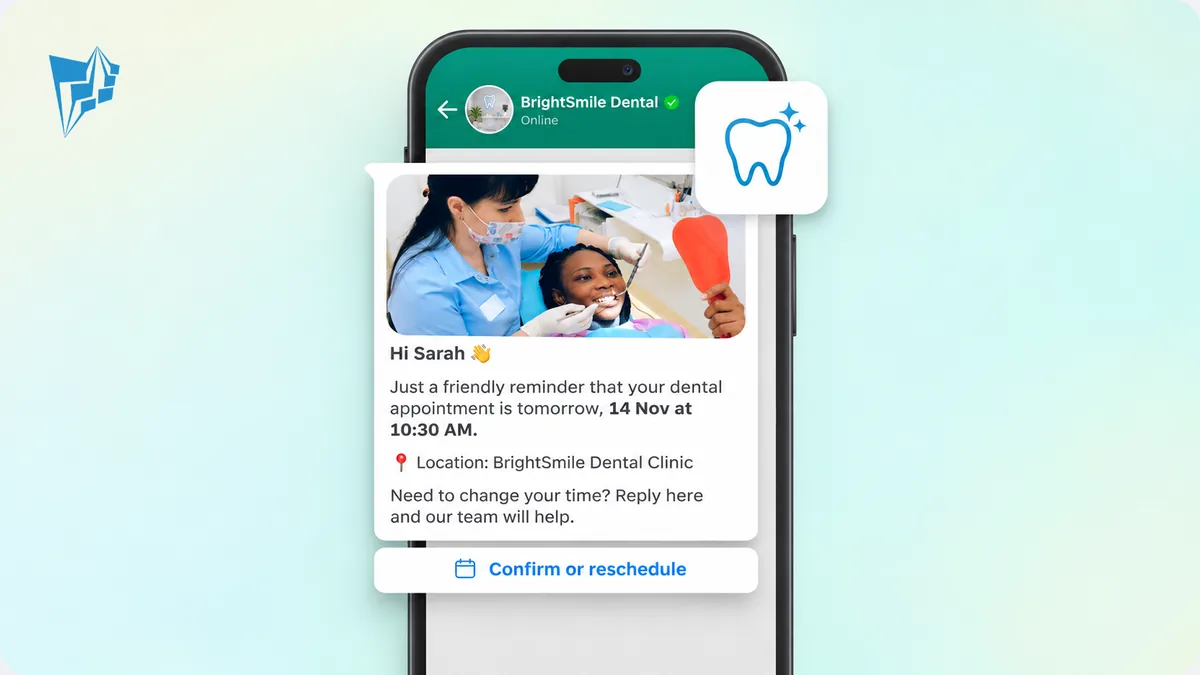
Most templates have blanks the automation fills in for each customer, such as a name, a date or an order number. Meta calls these variables and writes them as numbered placeholders in double curly braces: in “Hi {{1}}, your appointment is on {{2}}”, {{1}} becomes the customer’s name and {{2}} the date when the message is sent. The submission must include a sample value for each one, such as “Sarah” and “14 November”, so the reviewer can see what the customer would actually read.
The formatting mistakes behind most rejections
Meta lists parameter formatting first among its common rejection reasons. Each of these gets a template rejected:
- Dangling variables — the template starts or ends with a variable, such as a message that opens with {{1}}
- Broken braces — a variable is missing a curly brace, or the braces don’t match
- Special characters — a #, $ or % inside the variable itself
- Numbers out of order — {{1}}, {{2}}, {{5}}, {{4}} instead of {{1}} to {{4}}
- Too many variables for the length — a short message that is mostly blanks to fill in
The last one is the easiest to trip over, because it looks like good automation. A template that reads “{{1}} {{2}} {{3}}” could say anything, which is exactly why Meta won’t approve it. Write the fixed wording around the variables, so the message makes sense whatever goes into them.
Here are three templates that would be rejected, each beside a version that fixes the problem:
| Rejected | Approvable |
|---|---|
| {{1}}, your appointment is confirmed. | Hi {{1}}, your appointment is confirmed. |
| Your booking for {{1}} at {{2}} is on {{4}}. | Your booking for {{1}} at {{2}} is on {{3}}. |
| Hi {{1}}, {{2}} {{3}} {{4}}. | Hi {{1}}, your order {{2}} has shipped and should arrive by {{3}}. Reply here if anything is wrong. |
Our own examples of the rules Meta lists. The first starts with a variable, the second skips {{3}}, and the third is almost all variables, with too little fixed wording for a reviewer to tell what it will say.
Length limits apply as well. Meta’s template components reference caps the body at 1,024 characters and a text header at 60.
Content Meta won’t approve
Correct formatting doesn’t help a message Meta won’t send at all. The review page names three kinds:
- Sales that break the Commerce Policy — Meta treats everything about a product for sale, including its description, price and fees, as a transaction, and all of it must comply with the WhatsApp Commerce Policy
- Requests for sensitive identifiers — full card numbers, bank account numbers or national ID numbers, or documents that might contain them. Asking for the last four digits is allowed
- Threats — Meta’s example is “threatening a customer with legal action or threatening to publicly shame them.”
The third one catches payment reminders. A reminder that states the amount and the due date is fine. One that warns of court or of naming the customer publicly will be rejected, however overdue the invoice is.
Duplicates, and the wrong category
A template with the same body and footer wording as one the account already has is rejected as a duplicate. The rejection notice names the existing template, which is usually the one to use instead. Authentication templates are exempt from this check.
A wrong category is a different problem. A utility template with an offer tucked into it isn’t normally rejected for that: it is approved as marketing and billed at the marketing rate, as covered in How to Send WhatsApp Promotions and Anniversary Offers Within Meta’s Rules. Check the category on the approval, not just the word “approved.”
What to do when a template is rejected
Meta emails the rejection and posts the reason in Business Support Home, under the WhatsApp Business Account’s rejected message templates. Read the reason before changing anything, then take one of two routes:
- Edit and resubmit — when the reason points at something fixable, like a dangling variable or a duplicate
- Appeal — when the template follows the rules and was rejected anyway. An appeal must include a sample, and Meta says it will be decided within 24 hours
Both start from the template in WhatsApp Manager’s message templates list: open it, edit it if needed, add sample values with the Add Sample button and submit.
Approved isn’t the end of it
An approved template keeps being judged on how customers react. Meta gives each one a quality rating based on usage, feedback and read rates. A template that reaches the lowest rating is paused automatically: for 3 hours the first time, 6 hours the second, and disabled the third. Meta may also hold a new marketing template’s messages until early feedback comes in, and drop them if that feedback is bad.
The fix for a paused template is usually not the wording alone. Send it to fewer people who didn’t ask for it, and less often. A template that only goes to customers who opted in and expect it rarely gets blocked or reported.
Also Read: Automated Booking Confirmations and Reminders on WhatsApp
Key Takeaways
- Submit templates at least a day before they are needed. Review and appeals can each take up to 24 hours.
- Never start or end a template with a variable, number variables in order, and write enough fixed text around them.
- Payment reminders can state the amount and the date, but never threaten legal action or public shaming.
- Read the rejection reason in Business Support Home, then fix and resubmit, or appeal with a sample.
- Approved templates can still be paused and then disabled if customers block or ignore them.
Frequently Asked Questions
How many WhatsApp templates can one account have?
It depends on the business portfolio. Meta’s template documentation says each WhatsApp Business Account under an unverified portfolio is limited to 250 message templates. Once the portfolio is verified and at least one of its numbers has an approved display name, each account can have up to 6,000. A template in several languages counts once per language.
Can I use names like {{first_name}} instead of {{1}}?
Yes. Meta supports named parameters as well as numbered ones. Named parameters must be unique and use lowercase letters and underscores inside double curly brackets, such as {{first_name}}. If no format is set, the template uses numbered parameters by default, and either way every parameter needs an example value when the template is submitted.
Am I charged for messages a paused template couldn’t send?
No. Meta’s template pausing documentation says a business won’t be charged for attempting to send a paused template, and the attempt won’t count against its messaging limit. The API rejects the send anyway, so campaigns that use the template should be stopped until it is active again. For what sent templates do cost, see How Much Does the WhatsApp Business API Cost in 2026? Worked Monthly Bills.
What happens to templates I stop using?
Meta archives them. A template that has been inactive for 12 months or more is archived automatically, and an archived template is deleted after 28 days unless it is unarchived. Seasonal templates sent once a year are the ones to watch.
Does Meta translate my template into other languages?
No. Meta’s documentation says template strings and variables are not translated by Meta, so each language version has to be written and submitted separately, with example values in that language. Each one is reviewed on its own and counts against the account’s template limit. WhatsApp Automation for Businesses Operating in Multiple Countries covers running templates in several languages.
Final Thoughts
Template review is strict, but it isn’t mysterious. Meta publishes the reasons, and most rejected templates fail on formatting that takes a minute to fix. Write the fixed wording first and add the variables after, keep offers out of utility templates, and leave a day before anything has to go out.
Templates stuck in review?
ClubUnbrick writes and submits WhatsApp templates for businesses on the WhatsApp Business API, and connects them to the automations that send them.
What We Offer
- Template writing — Wording, variables and samples that pass review the first time.
- Category checks — Utility kept utility, so reminders and updates aren’t billed as marketing.
- Rejections and appeals — Reading the rejection reason, fixing the template and appealing where it’s wrong.
- Quality monitoring — Watching ratings so a template is fixed before it is paused.
Bring the templates you already have, approved or rejected, and we’ll start from those.