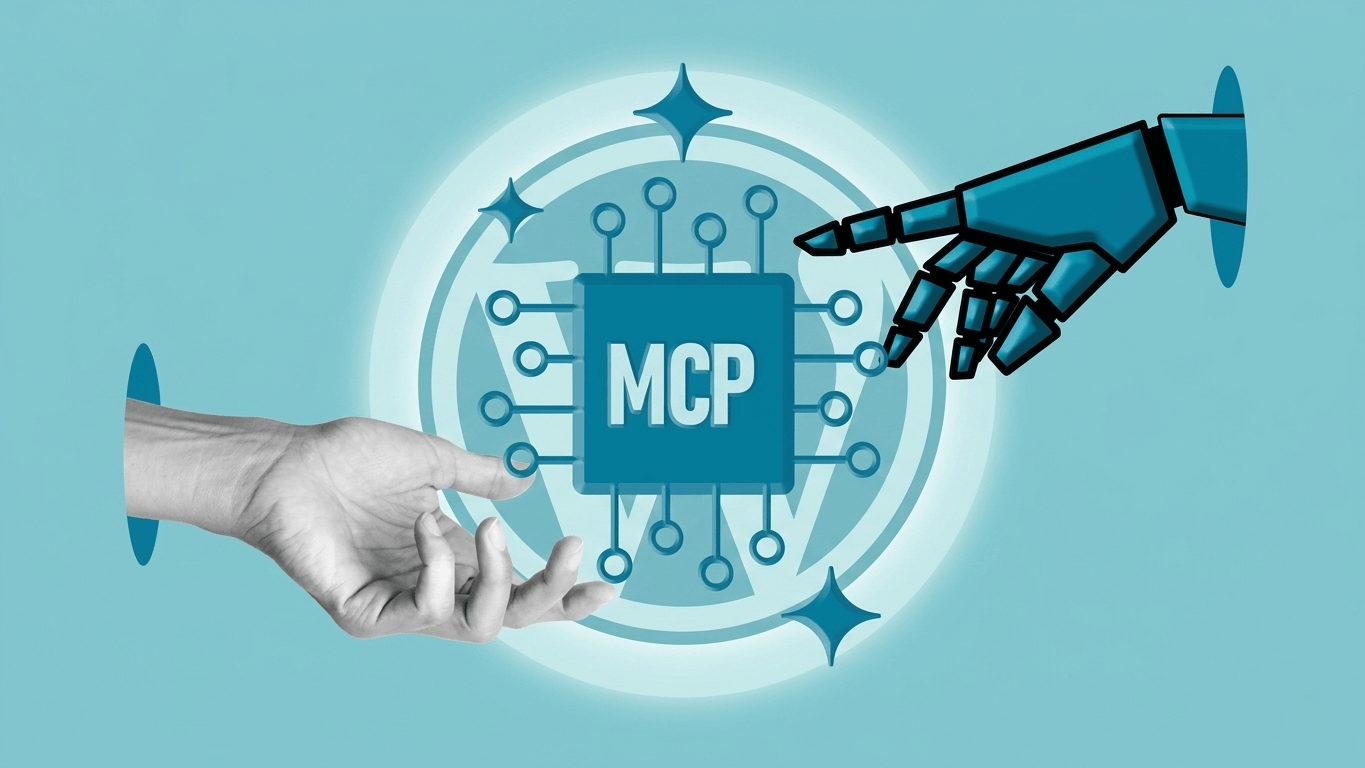
WordPress MCP integration brings AI into your content workflow so you can publish faster, stay consistent, and remove repetitive tasks. Whether you’re running a self-hosted WordPress site or managing multiple client sites, the Model Context Protocol lets your AI assistant actually do things on your site, not just suggest them. This guide explains what the Model Context Protocol is, the difference between the WordPress MCP plugin and MCP adapter, and practical steps to automate publishing, scheduling, bulk updates, and media management with AI-driven commands.
- Model Context Protocol (MCP) lets AI connect to apps and perform actions on your WordPress site
- WordPress MCP plugin is a lightweight solution that exposes basic WordPress functions to AI agents like Claude
- MCP adapter is a more flexible, server-side bridge that connects multiple AI tools to your WordPress site via REST API
- MCP automation WordPress workflows save hours each week by automating publishing, scheduling, bulk updates, and media management
- Best practices: Keep an editorial gate, use version control, test on staging, and write clear prompts for AI
What Is the Model Context Protocol?
The Model Context Protocol (MCP) is an open standard developed by Anthropic that lets AI assistants connect securely to external apps and access real-world data and functions. Think of it as a universal adapter that allows AI to interact with your tools, not just to read them, but actually use them.
MCP defines three core primitives:
- Tools — Functions the AI can call (e.g., “create a new post,” “update SEO fields,” “schedule a publish”)
- Resources — Data the AI can read (e.g., existing posts, media library, site analytics)
- Prompts — Reusable templates for common interactions
When you implement Model Context Protocol on WordPress, your AI goes from being a text generator to an active site operator that can discover what your site can do and execute actions safely.
How MCP Changes AI Roles
Instead of giving instructions and waiting for you to manually execute them, you can ask your AI to act. That means tasks like scheduling posts, optimizing SEO fields, uploading images, or updating metadata become voice or text commands, executed through secure adapters. This is the foundation for AI content automation WordPress users are adopting to scale content operations without hiring more writers or editors.
WordPress MCP Plugin vs MCP Adapter: What’s the Difference?
There are two main ways to implement MCP on WordPress: the WordPress MCP plugin and the MCP adapter. Both let AI interact with your site, but they work differently and serve different use cases.
WordPress MCP Plugin
The WordPress MCP plugin is a lightweight solution that you install directly on your WordPress site like any other plugin. Once activated, it exposes WordPress functions to AI agents that support MCP (like Claude Desktop, Cline, or other MCP-compatible tools).
How it works:
- Install the plugin on your WordPress site
- The plugin registers available functions (tools) and data (resources) that AI can access
- AI agents discover these capabilities automatically when connected
- You interact with your AI assistant, and it calls WordPress functions directly through the plugin
Pros:
- Simple installation. Just activate the plugin
- Works directly with AI desktop apps like Claude Desktop
- Lightweight and doesn’t require server-side configuration
- Good for single-site WordPress installations
Cons:
- Limited to AI tools that support MCP natively
- Less flexible for custom workflows or multi-site setups
- May have fewer advanced features than adapter-based solutions
Best for: Solo bloggers, small business sites, or anyone running a single self-hosted WordPress site who wants quick AI automation without technical setup.
MCP Adapter (Server-Side Bridge)
An MCP adapter is a more flexible, server-side solution that acts as a bridge between AI tools and your WordPress site. Instead of running inside WordPress, the adapter runs as a separate service (often on your server or locally) and communicates with WordPress via the REST API or custom endpoints.
How it works:
- Set up the MCP adapter as a standalone service (can be on the same server or a separate one)
- Configure it to connect to your WordPress site’s REST API with proper authentication
- The adapter exposes WordPress functions to any AI tool that supports MCP
- AI agents connect to the adapter, which translates commands into WordPress API calls
Pros:
- Works with multiple WordPress sites from a single adapter instance
- More control over security, authentication, and permissions
- Can integrate with other tools and platforms beyond WordPress
- Better for agencies managing client sites or enterprises with complex workflows
Cons:
- Requires more technical setup and server configuration
- Needs ongoing maintenance and monitoring
- May need developer help to customize or troubleshoot
Best for: Agencies, enterprises, multi-site networks, or teams that need advanced automation across multiple WordPress installations.
Which One Should You Choose?
If you’re running a single WordPress site and want quick AI automation, start with the WordPress MCP plugin. If you’re managing multiple sites, need custom workflows, or want maximum flexibility, go with an MCP adapter.
With MCP, your AI assistant can actually connect to WordPress, giving you direct visibility into your site’s content, analytics, and settings, all without leaving your AI tool.
How WordPress MCP Integration Works
Whether you use the plugin or adapter, the WordPress MCP integration exposes site functions to AI agents. With the integration active, AI tools can discover abilities such as creating posts, editing metadata, listing media items, and executing pre-built workflows. In short, the integration lets your AI read and act on your site while following your permission rules.
Core Capabilities
- Ability discovery — AI automatically knows what it can and cannot do on your site
- Secure authentication — Actions are authorized using WordPress user permissions or API keys
- Natural language execution — You give commands in plain English; AI translates them into WordPress actions
- Hooks for automation — Integrate with platforms like Zapier, Make, n8n or FlowMattic for multi-step workflows
Automating Content Workflows with WordPress MCP Integration
When you combine MCP automation WordPress capabilities with an editorial process, you can create a pipeline that handles idea generation, drafting, SEO checks, image assignment, and scheduling. The WordPress MCP integration is the bridge between AI and your site’s execution layer, enabling AI content automation WordPress teams to do more with less.
Typical Automated Pipeline
- Idea generation and topic cluster creation — AI suggests topics based on search trends and keyword research
- Draft creation and inline SEO suggestions — AI writes the post, adds headings, and optimizes meta descriptions
- Image generation or selection — AI finds or creates featured images and adds them to the media library
- Scheduling and distribution — AI publishes to WordPress and optionally triggers social media sharing via integrations
Trigger the content publication workflow for the latest blog post.
Practical Tasks You Can Automate
This section covers the hands-on actions you can automate once your WordPress MCP integration is active. Each task saves time and reduces repetitive editing across multiple posts or sites.
Auto-Publish and Scheduling
With an MCP-enabled connection, you can instruct your AI to publish or schedule posts. Use clear prompts and templates so the AI knows whether to publish as draft, pending review, or live. This approach turns manual calendar updates into a single command, and it makes content cadence easier to maintain.
Example prompts:
- “Publish this post as a draft and schedule it for next Monday at 9 AM”
- “Create a new post titled ‘SEO Best Practices’ and publish it immediately”
- “Schedule all posts in the drafts folder to publish one per week starting next Tuesday”
Bulk Updates and Content Transformations
Bulk content operations are ideal for multi-site networks and large archives. Ask your AI to update metadata, replace outdated links, or apply new categories across 50 posts, and the WordPress MCP integration will execute the steps. This is a major win for agencies and enterprise teams using MCP automation WordPress features to manage scale.
Common bulk operations:
- Update Yoast SEO fields or meta descriptions across all posts in a category
- Change author attribution or categories across archived posts
- Apply templated schema markup to product pages or blog posts
- Find and replace outdated links or references across your entire site
Write a blog post about ’email marketing tips’ for all my digital marketing clients. Make sure the Yoast SEO fields are optimised, and add a featured image. Publish them as drafts.
Media Library Management
AI can find duplicates, tag images, add alt text, and attach media to posts. The WordPress MCP integration provides media listing and update functions, so AI content automation WordPress teams can keep libraries clean and compliant with accessibility rules.
Media automation examples:
- “Add alt text to all images in the media library that are missing it”
- “Find and delete duplicate images uploaded in the last 30 days”
- “Tag all product images with ‘e-commerce’ and ‘featured'”
- “Compress all images larger than 1MB to improve site speed”
Also Read: WhatsApp Automation for Business: API Guide & Capabilities
Comparison: WordPress MCP Plugin vs MCP Adapter vs Workflow Bridges
Not all MCP integrations are the same. Some are plugins you install on your site, some are server-side adapters, and others are third-party workflow bridges. Use the table below to compare options and pick the right approach for your team.
| Solution | What It Is | Pros | Cons | Best For |
|---|---|---|---|---|
| WordPress MCP Plugin | Plugin installed directly on WordPress | Easy setup, works with Claude Desktop, lightweight | Single-site only, limited customization | Solo bloggers, small business sites |
| MCP Adapter (Self-Hosted) | Server-side bridge to WordPress REST API | Multi-site support, full control, highly customizable | Requires technical setup and maintenance | Agencies, enterprises, multi-site networks |
| FlowMattic MCP Bridge | Third-party workflow automation platform | 300+ app integrations, no code required, no API exposure | Third-party dependency, subscription cost | Teams needing multi-app automation (WordPress + Slack + Google Sheets, etc.) |
Also Read: 10 Best AI Marketing Automation Tools in 2026
Best Practices for WordPress MCP Automation
AI is powerful, but it’s not perfect. Follow these best practices to keep your WordPress MCP automation safe, reliable, and effective.
1. Always Test on a Staging Site First
Before running bulk updates or automated workflows on your live site, test them on a staging environment. This lets you catch errors, review AI-generated content, and refine prompts without risking your production site.
2. Keep an Editorial Gate
Don’t let AI publish directly to your live site without human review, at least not at first. Set up workflows where AI creates drafts or schedules posts for review, and a human approves before they go live. This ensures quality control and brand consistency.
3. Use Clear, Specific Prompts
The better your prompts, the better your results. Be explicit about what you want AI to do, and include examples when possible. Instead of “write a blog post,” say “write a 1,500-word blog post about email marketing tips, include 3 actionable strategies, optimize for the keyword ’email marketing best practices,’ and publish as a draft.”
4. Enable Version Control
Use WordPress plugins like WP Revisions Control or VersionPress to track changes made by AI. This lets you roll back mistakes and see exactly what was modified.
5. Monitor and Audit Regularly
Set up regular audits to review AI-generated content, check for broken links, and ensure SEO fields are properly filled. Even automated workflows need human oversight.
Key Takeaways
- WordPress MCP integration turns AI into an active site operator, not just a writing tool
- WordPress MCP plugin is best for single-site setups; MCP adapter is better for agencies and multi-site networks
- MCP automation WordPress workflows reduce repetitive tasks and free time for creative, strategic work
- Use templates, an editorial gate, and version control when automating publishing
- Test workflows on a staging site before running bulk updates on live content
Final Thoughts
Adopting the Model Context Protocol and WordPress MCP integration can transform how your team creates and publishes content, saving hours of manual work every week. Start small with scheduling and media tasks, then scale to bulk updates and full editorial pipelines as you gain confidence. Keep humans in the loop for quality, and use AI for repetitive, well-defined steps. Whether you choose the WordPress MCP plugin for simplicity or an MCP adapter for flexibility, the key is to start experimenting and building workflows that fit your team’s needs.
Ready to Automate Your WordPress Content Workflows?
At ClubUnbrick, we help teams implement MCP automation WordPress solutions that improve speed, consistency, and content quality. We build secure adapters, set up workflows, and train your team to use AI safely and effectively.
What We Offer
- MCP Integration Setup — Secure installation and configuration of MCP plugins, adapters, and custom solutions
- Workflow Design — Custom automation flows for publishing, scheduling, bulk updates, and media management
- Editor Training — Teach your team safe prompts, review workflows, and quality checks to maintain editorial standards
- Ongoing Support — Monitoring, updates, performance tuning, and troubleshooting as your needs evolve
Contact us to plan a phased MCP rollout that fits your publishing calendar and workflow.