WordPress MCP integration brings AI into your content workflow so you can publish faster, stay consistent, and remove repetitive tasks. Whether you’re running a self-hosted WordPress site or managing multiple client sites, the Model Context Protocol lets your AI assistant actually do things on your site, not just suggest them. This guide explains what the Model Context Protocol is, the difference between the WordPress MCP plugin and MCP adapter, and practical steps to automate publishing, scheduling, bulk updates, and media management with AI-driven commands.
- Model Context Protocol (MCP) lets AI connect to apps and perform actions on your WordPress site
- WordPress MCP plugin is a lightweight solution that exposes basic WordPress functions to AI agents like Claude
- MCP adapter is a more flexible, server-side bridge that connects multiple AI tools to your WordPress site via REST API
- WordPress 6.9 put the Abilities API in core, so the adapter now translates abilities the site already registers instead of defining its own
- What gets automated: publishing, scheduling, bulk updates and media management, which is where the repetitive editing hours go
- Best practices: Keep an editorial gate, use version control, test on staging, and write clear prompts for AI
What Is the Model Context Protocol?
The Model Context Protocol (MCP) is an open standard developed by Anthropic that lets AI assistants connect securely to external apps and access real-world data and functions. Anthropic introduced it in November 2024 as a way to build two-way connections between data sources and AI-powered tools. Think of it as a universal adapter that allows AI to interact with your tools, not just to read them, but actually use them.

MCP defines three core primitives:
- Tools — Functions the AI can call (e.g., “create a new post,” “update SEO fields,” “schedule a publish”)
- Resources — Data the AI can read (e.g., existing posts, media library, site analytics)
- Prompts — Reusable templates for common interactions
When you implement Model Context Protocol on WordPress, your AI goes from being a text generator to an active site operator that can discover what your site can do and execute actions safely.
How MCP Changes AI Roles
Instead of giving instructions and waiting for you to manually execute them, you can ask your AI to act. That means tasks like scheduling posts, optimizing SEO fields, uploading images, or updating metadata become voice or text commands, executed through secure adapters. That is the difference between an assistant that writes you a to-do list and one that works through it, and it is what makes AI content automation on WordPress worth setting up at all.
WordPress MCP Plugin vs MCP Adapter: What’s the Difference?
There are two main ways to implement MCP on WordPress: the WordPress MCP plugin and the MCP adapter. Both let AI interact with your site, but they work differently and serve different use cases. Both names also belong to specific projects now, and it is worth knowing which is which before you install anything.
WordPress MCP Plugin
The WordPress MCP plugin is a lightweight solution that you install directly on your WordPress site like any other plugin. Once activated, it exposes WordPress functions to AI agents that support MCP (like Claude Desktop, Cline, or other MCP-compatible tools). The best-known example is Automattic’s wordpress-mcp, which ships two transports and authenticates with JWT or Application Passwords.
| Step | What happens |
|---|---|
| 1. Install | You add the plugin to WordPress and activate it, the same as any other plugin |
| 2. Register | The plugin publishes the functions (tools) and data (resources) it is willing to expose |
| 3. Discover | Any connected MCP client reads that list and knows what the site can and cannot do |
| 4. Execute | You give the assistant an instruction and it calls the matching WordPress function directly |
Each strength here has a matching cost, and they are the same design decision seen from two sides.
| What you get | What it costs you |
|---|---|
| Installs and activates like any plugin, with no server-side configuration | That same simplicity caps how far you can customise a workflow |
| Talks straight to desktop AI clients such as Claude Desktop or Cursor | Only clients that speak MCP natively can connect at all |
| Runs inside WordPress, so it inherits the roles and capabilities you already set | Scoped to the single install it sits on, which is awkward across a network |
Best for: Solo bloggers, small business sites, or anyone running a single self-hosted WordPress site who wants quick AI automation without technical setup.
MCP Adapter (Server-Side Bridge)
An MCP adapter is a separate service that stands between AI tools and your WordPress site. Rather than defining its own list of functions, it translates capabilities the site has already declared. The canonical implementation is the WordPress project’s own MCP Adapter, which the WordPress Developer Blog introduced in February 2026 as part of the AI Building Blocks initiative.
| Step | What happens |
|---|---|
| 1. Register abilities | Core, plugins and themes declare what they can do through the Abilities API, in WordPress since 6.9 |
| 2. Add the adapter | Install it as a plugin from the releases page, or run composer require wordpress/mcp-adapter inside your own plugin |
| 3. Expose | Each registered ability becomes an MCP primitive, served over HTTP or STDIO transport |
| 4. Authenticate and call | The client connects as a WordPress user and invokes abilities by name, bounded by that user’s capabilities |
The trade-offs run the other way from the plugin route.
| What you get | What it costs you |
|---|---|
| One instance can front several WordPress sites at once | Somebody has to host, secure and keep updating that instance |
| You decide which abilities are exposed, to whom, and under what permissions | More moving parts to configure before anything works at all |
| Sits alongside non-WordPress tools in the same agent setup | Troubleshooting usually needs a developer rather than an admin |
Best for: Agencies, enterprises, multi-site networks, or teams that need advanced automation across multiple WordPress installations.
Which One Should You Choose?
For a single site you want working this afternoon, install a plugin that speaks MCP and stop there. For several sites, custom abilities, or anything you will have to defend in a security review, run an adapter. The direction of travel is worth weighing too: Automattic’s plugin is being wound down in favour of the WordPress-maintained adapter, so the adapter route is the one that will still be getting patches in two years.
Using MCP, AI applications like Claude or ChatGPT can connect to data sources (e.g. local files, databases), tools (e.g. search engines, calculators) and workflows (e.g. specialized prompts)—enabling them to access key information and perform tasks.
How WordPress MCP Integration Works
Whether you use the plugin or adapter, the WordPress MCP integration exposes site functions to AI agents. With the integration active, AI tools can discover abilities such as creating posts, editing metadata, listing media items, and executing pre-built workflows. In short, the integration lets your AI read and act on your site while following your permission rules.
Core Capabilities
- Ability discovery — AI automatically knows what it can and cannot do on your site
- Secure authentication — Actions are authorized with WordPress Application Passwords or OAuth tokens, and inherit that user’s capabilities
- Natural language execution — You give commands in plain English; AI translates them into WordPress actions
- Hooks for automation — Cross-app workflows through Zapier MCP, Make, or n8n’s MCP Server Trigger, or a WordPress-native MCP server like Novamira wired straight to the site for tighter, plugin-level control
Automating Content Workflows with WordPress MCP Integration
The value shows up when the connection sits inside an editorial process rather than beside it. A pipeline that runs from idea to scheduled post crosses four boundaries, and MCP is what lets an assistant carry the work across all of them instead of handing it back at each one.
Typical Automated Pipeline
- Idea generation and topic cluster creation — AI suggests topics based on search trends and keyword research
- Draft creation and inline SEO suggestions — AI writes the post, adds headings, and optimizes meta descriptions against the same on-page checklist a human editor would work from
- Image generation or selection — AI finds or creates featured images and adds them to the media library
- Scheduling and distribution — AI publishes to WordPress and optionally triggers social media sharing via integrations
What This Looked Like on Our Own Install
We ran this exact setup against our own WordPress site for months, and the parts that cost us time were not the parts the documentation warns about.
The bridge was Novamira, an open-source WordPress plugin and MCP server that states its purpose plainly:
Give your AI agents full access to your WordPress site. Nothing in between.
It exposes an MCP endpoint on the site (/wp-json/mcp/novamira), and the agent connects to it over Basic Auth with a WordPress Application Password rather than an admin login.
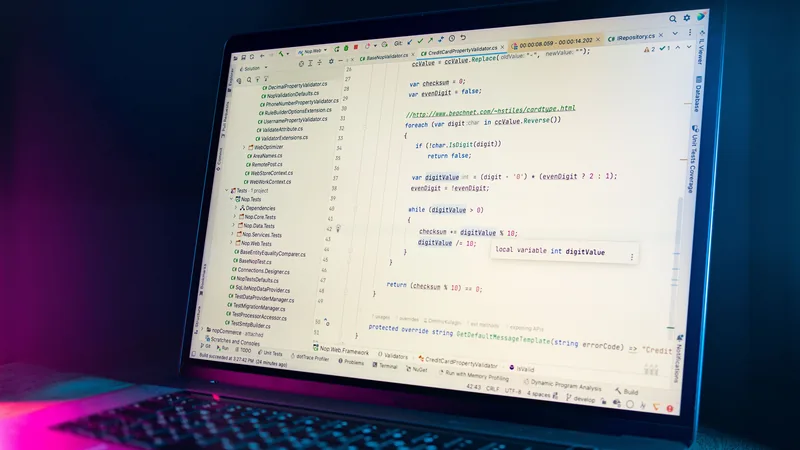
Connected, the install exposed 53 distinct abilities, and every task ran the same sequence: discover what the site exposes, inspect the schema of the one ability you need, then execute it with arguments read off that schema, never guessed.
If the first connection fails, check two things before blaming MCP:
- The username — Basic Auth needs the WordPress login name, which is often not the display name shown on posts. Every auth failure looks the same from the outside, so rule this out first.
- The test tool — On Windows, PowerShell 5.1 can error on auth redirects when run from a script or an agent’s shell, because it tries to prompt where it can’t. If
curlgets through, the credential is fine.
Practical Tasks You Can Automate
This section covers the hands-on actions you can automate once your WordPress MCP integration is active. Each task saves time and reduces repetitive editing across multiple posts or sites.
Auto-Publish and Scheduling
With an MCP-enabled connection, you can instruct your AI to publish or schedule posts. Use clear prompts and templates so the AI knows whether to publish as draft, pending review, or live. This approach turns manual calendar updates into a single command, and it makes content cadence easier to maintain.
Example prompts:
- “Publish this post as a draft and schedule it for next Monday at 9 AM”
- “Create a new post titled ‘SEO Best Practices’ and publish it immediately”
- “Schedule all posts in the drafts folder to publish one per week starting next Tuesday”
Bulk Updates and Content Transformations
Bulk content operations are ideal for multi-site networks and large archives. Ask your AI to update metadata, replace outdated links, or apply new categories across 50 posts, and the WordPress MCP integration will execute the steps. This is where the setup starts paying for itself, particularly for agencies and in-house teams looking after more than a handful of sites.
Common bulk operations:
- Update Yoast SEO fields or meta descriptions across all posts in a category
- Change author attribution or categories across archived posts
- Apply templated schema markup to product pages or blog posts
- Find and replace outdated links or references across your entire site
A real example of this same discipline: this blog’s own archive gets periodically swept for dead links and paraphrased-not-verbatim citations, with verified replacements swapped in. That is the process behind this article’s own rewrite. On a live WordPress install, Novamira runs the same sweep as a sequence of ability calls (list posts, read content, update the field) instead of manual edits.
Media Library Management
AI can find duplicates, tag images, add alt text, and attach media to posts. Media listing and update functions are part of every MCP implementation worth using, which makes the library an easy place to start: the work is repetitive, the rules are clear, and complete alt text is an accessibility requirement before it is an SEO one.
Media automation examples:
- “Add alt text to all images in the media library that are missing it”
- “Find and delete duplicate images uploaded in the last 30 days”
- “Tag all product images with ‘e-commerce’ and ‘featured'”
- “Compress all images larger than 1MB to improve site speed”
Also Read: WhatsApp Automation for Business: API Guide & Capabilities
Comparison: WordPress MCP Plugin vs MCP Adapter vs Workflow Bridges
Not all MCP integrations are the same. Some are plugins you install on your site, some are server-side adapters, and others are third-party workflow bridges. Use the table below to compare options and pick the right approach for your team.
| Solution | What It Is | Pros | Cons | Best For |
|---|---|---|---|---|
| WordPress MCP Plugin | Plugin installed directly on WordPress (Novamira, or Automattic’s wordpress-mcp) | Easy setup, works with Claude Desktop/Code, lightweight | Single-site only, limited customization | Solo bloggers, small business sites |
| MCP Adapter (Self-Hosted) | Bridge between MCP clients and the abilities WordPress registers, authenticated as a WordPress user | Multi-site support, full control, highly customizable | Requires technical setup and maintenance | Agencies, enterprises, multi-site networks |
| No-Code Workflow Bridge | Third-party automation platform with MCP support (e.g., Zapier, Make, n8n) | Hundreds of app integrations, no code required | Third-party dependency, subscription cost, less direct WordPress control | Teams needing multi-app automation beyond WordPress alone (WordPress + Slack + Google Sheets, etc.) |
Also Read: 10 Best AI Marketing Automation Tools in 2026
Best Practices for WordPress MCP Automation
AI is powerful, but it’s not perfect. Follow these best practices to keep your WordPress MCP automation safe, reliable, and effective.
1. Always Test on a Staging Site First
Before running bulk updates or automated workflows on your live site, test them on a staging environment. This lets you catch errors, review AI-generated content, and refine prompts without risking your production site.
Give yourself an exit as well as a rehearsal. When we moved a client's site off WordPress entirely, the old install stayed parked on a subdomain for twelve days after launch, so a rollback would have been a DNS change rather than a rescue operation. A bulk update is smaller than a migration, but the principle is identical: an automated change you cannot undo is a change you should not have automated.

2. Keep an Editorial Gate
Don’t let AI publish directly to your live site without human review, at least not at first. Set up workflows where AI creates drafts or schedules posts for review, and a human approves before they go live. The strongest version of this is not a rule but a role: give the agent a Contributor account and it cannot publish, whatever a prompt tells it to do.
3. Use Clear, Specific Prompts
The better your prompts, the better your results. Be explicit about what you want AI to do, and include examples when possible. Instead of “write a blog post,” say “write a 1,500-word blog post about email marketing tips, include 3 actionable strategies, optimize for the keyword ’email marketing best practices,’ and publish as a draft.”
4. Enable Version Control
WordPress already keeps a history of post content. The documentation describes the revisions system as one that “stores a record of each saved draft or published update”, and restoring one is a single button. Raise the stored limit in wp-config.php if your host has trimmed it, or set it per post type with WP Revisions Control, which still tracks current WordPress releases.
What revisions do not cover is everything outside post content: options, taxonomies, menus and files. For those, the rollback is a backup taken before the run. If an older article recommends VersionPress for this job, skip it. The repository was archived in July 2024 and its README states that the project is not actively developed.
5. Monitor and Audit Regularly
Set up regular audits to review AI-generated content, check for broken links, and ensure SEO fields are properly filled. Even automated workflows need human oversight.
Key Takeaways
- WordPress MCP integration turns AI into an active site operator, not just a writing tool
- WordPress MCP plugin is best for single-site setups; MCP adapter is better for agencies and multi-site networks
- The Abilities API in WordPress 6.9 moved the plumbing into core, and the adapter route is the one still being maintained
- Automating publishing, scheduling, bulk updates and media management is where the repetitive hours actually go
- Use templates, an editorial gate, and version control when automating publishing
- Test workflows on a staging site before running bulk updates on live content
Frequently Asked Questions
Do I still need a plugin to connect AI to my WordPress site?
Yes, but a smaller one than before. WordPress 6.9 added the Abilities API to core, which the release note calls “a new foundational system that enables plugins, themes, and WordPress core to register and expose their capabilities in a standardized, machine-readable format”. Core registers those abilities; it does not speak MCP. Something still has to translate, and that is the MCP Adapter, installed as a plugin or pulled in with Composer.
What is the difference between the WordPress MCP plugin and the MCP Adapter?
They are two generations of the same idea. Automattic’s wordpress-mcp exposed a hand-built list of WordPress tools and resources to MCP clients, and its repository now states that it “will be deprecated as stable releases of mcp-adapter become available”. The MCP Adapter, maintained under the WordPress organisation, defines no tool list of its own. It bridges whatever abilities core and your plugins have already registered.
How does an AI agent log in to my WordPress site?
As a WordPress user, not as a shared admin. Application Passwords, in core since WordPress 5.6, issue one revocable credential per application, and the agent inherits exactly the roles and capabilities of the user it belongs to. Novamira accepts Application Passwords or OAuth. Revoking the password disconnects the agent and leaves your own login untouched.
Can AI publish to my site without me approving it?
It can, so use the account to stop it. WordPress documents the Contributor role as “somebody who can write and manage their own posts but cannot publish them”. Give the agent a Contributor account and every draft it produces waits for a human to hit publish, whatever the prompt asked for. Enforcing that at the role level survives a badly worded prompt; a note in your workflow document does not.
What happens if an automated change breaks something?
Post content is recoverable. The WordPress revisions system “stores a record of each saved draft or published update”, and restoring one is a button. Everything outside post content is not covered: options, taxonomies, menus and files need a backup taken before the run. If an older article points you at VersionPress for this, skip it; the repository was archived in July 2024 and its README says the project is not actively developed.
Final Thoughts
Point Claude or Codex at a staging site and ask it what abilities it can see. Scheduling and media work are the safe places to build confidence next, because a mistake there costs nothing. Bulk operations come after that, once you trust the setup and have a backup you have actually restored from. Keep a human on the publish button the whole way.
Ready to Automate Your WordPress Content Workflows?
At ClubUnbrick, we set up MCP connections for WordPress teams who want the repetitive editing gone without losing control of what gets published. We build secure adapters, design the workflows, and train your team to run them safely.
What We Offer
- MCP Integration Setup — Secure installation and configuration of MCP plugins, adapters, and custom solutions
- Workflow Design — Custom automation flows for publishing, scheduling, bulk updates, and media management
- Editor Training — Teach your team safe prompts, review workflows, and quality checks to maintain editorial standards
- Ongoing Support — Monitoring, updates, performance tuning, and troubleshooting as your needs evolve
Contact us to plan a phased MCP rollout that fits your publishing calendar and workflow.